Forefont Security for Exchange (before v. 2010) may use a lot of CPU/RAM and almost hangs your transport server.
If you stop Forefront, some emails (*.eml) can remain blocked in the following folders (incoming and outgoing emails) :
C:\Program Files (x86)\Microsoft Forefront Security\Exchange Server\Data\Archive\in
C:\Program Files (x86)\Microsoft Forefront Security\Exchange Server\Data\Archive\out
In order to release them, just move them to the following folder and let Exchange process them :
C:\Program Files (x86)\Microsoft Forefront Security\Exchange Server\Pickup
Showing posts with label Exchange. Show all posts
Showing posts with label Exchange. Show all posts
Monday, July 12, 2010


Wednesday, May 19, 2010
Routing Sendmail SMTP messages to Exchange 2007 distribution lists
Relaying emails from an internal sendmail server to an Exchange 2007 transport server will work for AD users recipients, but not for AD distribution lists.
The error given by the Exchange server is :
550 5.7.1 RESOLVER.RST.AuthRequired; authentication required
In order to allow emails coming from an internal sendmail server, you can disable the authentication on this distribution list :
Edit the distribution list property in the Exchange Management Console, mail flow settings tab, Message Delivery restriction and then uncheck "Require that all senders are authenticated.

The error given by the Exchange server is :
550 5.7.1 RESOLVER.RST.AuthRequired; authentication required
In order to allow emails coming from an internal sendmail server, you can disable the authentication on this distribution list :
Edit the distribution list property in the Exchange Management Console, mail flow settings tab, Message Delivery restriction and then uncheck "Require that all senders are authenticated.

Send text messages (SMS) from Outlook/Exchange 2010
A cool new feature of Exchange 2010 allows you to send text messages from your OWA or Outlook 2010 client.
You will also need a Windows Mobile phone connected to your Exchange 2010 mailbox. WM 6.1 should download an update from the Exchange Server to enable this functionality (I haven’t tested this) whereas WM 6.5 can do this out of the box.
It basically works by syncing the SMS to your phone and your phone then sends it out.
When setting up the partnership between your Windows Mobile phone and Exchange you should see the option to also sync your text messages. Once you select this you will need to restart Outlook 2010 after which it will show you an additional item under “New Items” called “Test Message (SMS)”.
Incoming texts will also land in your Exchange mailbox.
It is worth noting that I wasn’t able to add the SMS syncing after I had created the partnership with Exchange – I had to remove the partnership and recreate it.
Wednesday, March 3, 2010
Exchange 2010 Public Folder Replication
After installing the first Exchange 2010 Server in an Exchange 2007 environment, I noticed the public folders weren’t replicating. Even after adding a number of replicas the hierarchy wasn’t even showing up.
After much searching I found this comment in a blog entry with the solution. Basically, it was due to an object still remaining in Active Directory from Exchange 2003 days.
Using ADSIEdit open “Configuration-Services-Microsoft Exchange-<Organization Name>-Administrative Groups-<Name of your Admin Group>”
In this container delete the object “Servers”.
(Before doing this you should probably back up your AD ;) )
After a little waiting, all was back to normal.
Wednesday, February 10, 2010
Changing the polling interval for the Exchange FDS
The Exchange 2007 File Distribution Service is responsible for keeping the OAB on the CAS in sync with the mailbox server. The default setting only polls the OAB every 8 hours. This could mean that a change you make doesn’t make it to the Outlook clients until well over a day (if you leave the OAB creation to the default once a day)!
To change this setting to e.g. every hour (60 minutes) use this command:
Get-OabVirtualDirectory| Set-OabVirtualDirectory -pollinterval 60
Wednesday, February 3, 2010
Exchange organization reboot issue : blocked emails
When your exchange 2007 organization have multiple servers, since roles should be splitted on different machines, and you need to reboot them, it appears that sometimes emails are blocked.
This can come from the Hub transport server and even if the MS Exchange transport service is set on automatic, is appears not started after reboot.
Just start the Microsoft Exchange Transport service, and all emails will be released.
This can come from the Hub transport server and even if the MS Exchange transport service is set on automatic, is appears not started after reboot.
Just start the Microsoft Exchange Transport service, and all emails will be released.
Tuesday, September 29, 2009
Hide your internal Exchange server name on EHLO HELO - Change your SMTP banner
I had a single Exchange server 2007 (exchange1.intra) on my internal network.
This server had the CAS, Transport and Mailbox roles installed on it.
This server used an SMTP relay to send/receive emails (public name : mail.mycompany.com).
Emails sent to some recipient servers were rejected with the following error :
This came from the fact that some recipient servers double check the name of the server sending the email with a telnet/ehlo-helo request on it :
telnet mail.mycompany.com 25
> 220 exchange1.intra Microsoft ESMTP MAIL Service .....
exchange1.intra is different from mail.mycompany.com
You can check your mail server with useful online tools line MXToolBox
Unfortunately, you cannot change your SMTP banner on your Exchange server if it has the mailbox role installed on it.
In order to change your SMTP banner, you need to :
1- add another server (echange2.intra) to your Exchange organization with the mailbox role, move all mailboxes on it and remove the mailbox role from echange1.intra.
2- remove the default Exchange header (will hide that your server is running Exchange) on
Run in the Exchange Management Shell the following command, whereis the name of your send connector:
Get-SendConnector “send connector” | Remove-ADPermission -AccessRight ExtendedRight -ExtendedRights “ms-Exch-Send-Headers-Routing” -user “NT AUTHORITY\Anonymous Logon”
Restart the Exchange Transport service.
3- Set up your new banner with the name of the public server (mail.mycompany.com)
Open a command prompt on exchange1.intra :
cd C:\inetpub\AdminScripts
cscript adsutil.vbs set smtpsvc/1/connectresponse "mail.mycompany.com My Company"
4- Check on echange1.intra that in the send connector properties, you have filled the correct FQDN for helo/ehlo requests
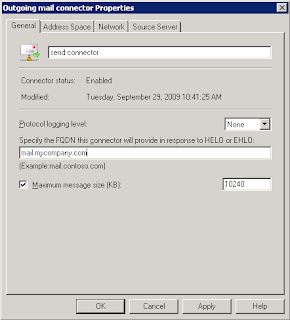
Then the telnet feedback will be:
telnet mail.mycompany.com 25
> 220 mail.mycompany.com My Company
And your emails won't be rejected anymore.
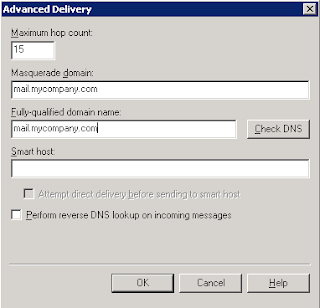
PS : if you have an SMTP virtual server (IIS), don't forget to put in the masquerade domain and FQDN fields.
This server had the CAS, Transport and Mailbox roles installed on it.
This server used an SMTP relay to send/receive emails (public name : mail.mycompany.com).
Emails sent to some recipient servers were rejected with the following error :
This came from the fact that some recipient servers double check the name of the server sending the email with a telnet/ehlo-helo request on it :
telnet mail.mycompany.com 25
> 220 exchange1.intra Microsoft ESMTP MAIL Service .....
Unfortunately, you cannot change your SMTP banner on your Exchange server if it has the mailbox role installed on it.
In order to change your SMTP banner, you need to :
1- add another server (echange2.intra
2-
Run in the Exchange Management Shell the following command, where
Get-SendConnector “send connector” | Remove-ADPermission -AccessRight ExtendedRight -ExtendedRights “ms-Exch-Send-Headers-Routing” -user “NT AUTHORITY\Anonymous Logon”
Restart the Exchange Transport service.
3- Set up your new banner with the name of the public server (mail.mycompany.com)
Open a command prompt on exchange1.intra
cd C:\inetpub\AdminScripts
cscript adsutil.vbs set smtpsvc/1/connectresponse "mail.mycompany.com My Company"
4- Check on echange1.intra that in the

Then the telnet feedback will be:
telnet mail.mycompany.com 25
> 220 mail.mycompany.com My Company
And your emails won't be rejected anymore.
PS : if you have an SMTP virtual server (IIS), don't forget to put

Monday, September 28, 2009
Certificate Errors with Exchange 2007
There is so much information about Exchange 2007 and certificate errors on the internet that it is sometimes difficult to wade through it all and find exactly what you are looking for.
I’m not going to repeat all of it here but I would like to give a quick summary of what I think solves most of the issues people are having when it comes to OWA, OAB and Autodiscover certificate errors, including the error “The name of the security certificate is invalid or does not match the name of the site”. There are obviously many ways to do this. I find this the easiest and most straight forward.
Basically, when you have a single CAS server (e.g. “server1.mydomain.local”) being accessed over IIS (for EAS, OWA, OAB etc.) using more than one URL (e.g. “owa.officialdomain.com”, autodiscover.officialdomain.com) you need a certificate which contains all of your URLs (a UC cert). To create this certificate use the Exchange Management Shell:
New-Exchangecertificate -domainname owa.officialdomain.com, autodiscover.officialdomain.com, server1.mydomain.local, server1 -Friendlyname owacert -generaterequest:$true -keysize 1024 -path c:\certrequest.txt -privatekeyexportable:$true -subjectname "DC=mydomain, DC=local, CN=server1.mydomain.local”
With this request, go to your MS CA (or some online CA) and request the certificate. Then import it using the Management Shell:
Import-Exchangecertificate -path c:\certnew.cer
The management shell will then display the thumbprint, which you will need for enabling the certificate:
Enable-exchangecertificate –services IIS –thumbprint AE8863602018F46A7E72DFA7A49D3484335EF98F
You should now have your certificate working with all URLs without the invalid name errors.
Obviously, the rest of your configuration will need to be correct, i.e. you will have to your clients trust either the certificate itself or the issuing CA.
Note:
If you have pre-Vista SP1 Windows clients (e.g. XP), Outlook will not be able to connect to the Outlook Anywhere address unless it is the CN of the cert subject
Friday, August 28, 2009
Adding Antispam features to Exchange 2007
If you’re not using an Edge server in your Exchange 2007 environment you can still add antispam features to your server.
In the Exchange installation folder (usually C:\Program Files\Microsoft\Exchange Server\) in the subfolder “Scripts” you will find the script “install-AntispamAgents.ps1”. Open the Exchange Management Shell, switch to the Scripts folder and run the script.
You will need to restart the Exchange Transport service and then you will find an extra tab “Antispam” in the Hub-Transport settings under Organization.
Adding zen.spamhaus.org to the block list providers significantly reduced the amount of spam I was receiving.
Wednesday, April 1, 2009
Forefront “Exceedingly compressed size” error
When uploading a compressed file to SharePoint or sending it via email (Exchange), users were getting the error “Exceedingly compressed size”.
It seems that Forefront will block any compressed file that has a file larger than 20MB. Unfortunately, this setting can only be changed in the registry. I found the following newsgroup entry on the subject:
The Exceedingly compressed size can be controlled by a registry key called MaxCompressedArchivedFileSize.
If any one object within the zip file has a COMPRESSED size of over the MaxCompressedArchivedFileSize (which is a default of approx
20MB) then Forefront will delete this file. The reason this was done was to prevent a denial of service attack where Antigen would be scanning an infinitely large file. The incident that you will see for this would be an "Exceedingly compressed size virus”.
If this is the reason why a message is getting caught you can do the following:
- In the registry go to HKEY_LOCAL_MACHINE\SOFTWARE\Wow6432Node\Microsoft\Forefront Server Security\SharePoint or (Exchange) Server
- Add a DWORD Key of: MaxCompressedArchivedFileSize (equaling 40,000,000)
- Restart FSCController service
This is about 40 MB. This will allow the zip file itself to be about 40 MB before Forefront will take action on it.
Subscribe to:
Posts (Atom)